FLYNCACHE
Smart Cache Purge Manager
Complete Support Guide
—————————————————————————————–
Version 1.0
Developed by Wasim Akram
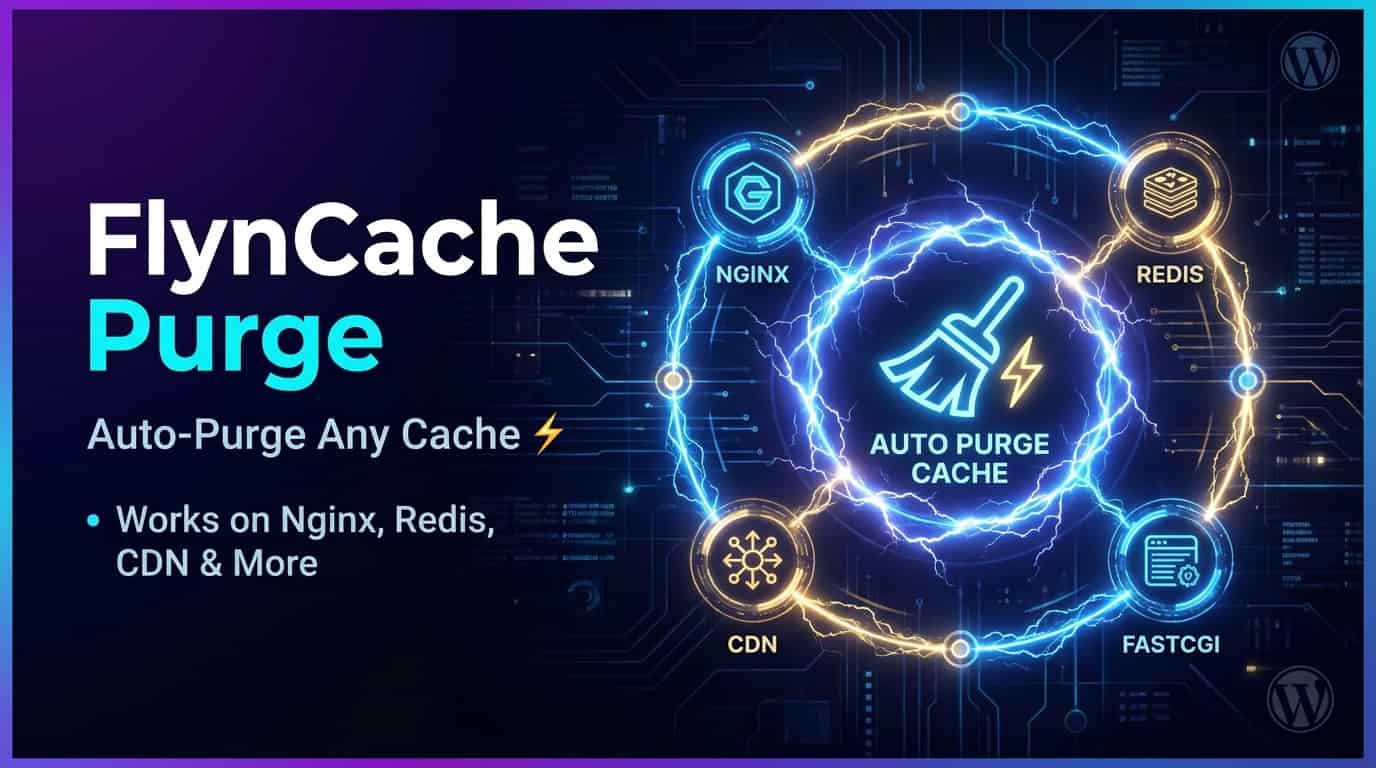
A comprehensive WordPress plugin for managing cache purging across Nginx, Redis, LiteSpeed, Cloudflare, and custom CDNs.
1. Introduction
FlynCache is a powerful, all-in-one WordPress plugin designed to simplify cache management across multiple caching technologies. Whether you are running a single blog or a high-traffic e-commerce site, FlynCache gives you complete control over your caching layer with an intuitive interface that makes complex operations feel effortless. Developed by Wasim Akram and available at digitalwasim.com, this plugin eliminates the need to manually SSH into your server or use multiple third-party tools just to clear your cache.
Cache management is one of the most critical aspects of running a fast, reliable WordPress site. Caching dramatically reduces page load times by serving pre-generated copies of your content, which lowers server resource usage and improves the experience for your visitors. However, when you update a post, change a theme setting, or publish new content, stale cached versions can cause visitors to see outdated information. This is where intelligent cache purging becomes essential. Without a proper purge mechanism, you risk showing incorrect prices, outdated articles, or broken layouts to your audience.
FlynCache supports a wide range of cache technologies, making it the only plugin you need regardless of your hosting stack. The plugin integrates seamlessly with Nginx FastCGI Cache, which is widely regarded as one of the fastest page-caching solutions available for WordPress. It also supports Redis Object Cache for query and object-level caching, LiteSpeed Cache for servers running the LiteSpeed web server, Cloudflare CDN for edge-level cache purging, and any custom CDN that supports HTTP-based purge requests including KeyCDN, StackPath, BunnyCDN, Fastly, and Sucuri.
What sets FlynCache apart from other cache management plugins is its intelligent auto-detection system. When you first install and activate the plugin, it automatically scans your server environment to identify which caching technologies are in use, locates cache directories, reads Nginx configuration files, and suggests optimal settings. This zero-configuration approach means you can be up and running within minutes, even if you have limited technical knowledge about server administration.
Supported Cache Types
The following table provides a quick overview of all cache types supported by FlynCache, along with their primary use cases and the purge methods available for each:
| Cache Type | Description | Purge Method | Auto-Detect |
|---|---|---|---|
| Nginx FastCGI | Full-page server-side caching via Nginx | Filesystem delete | Yes |
| Redis | Object and query caching via Redis server | Redis FLUSHDB command | Yes |
| LiteSpeed | Server-level cache via LiteSpeed engine | LSCWP API / Filesystem | Yes |
| Cloudflare | Edge CDN caching by Cloudflare | Cloudflare API v4 | Manual |
| Custom CDN | Any HTTP-purge capable CDN | HTTP PURGE request | Manual |
Table 1: Supported cache types and their purge methods in FlynCache
2. Getting Started
Installation
Installing FlynCache is straightforward and follows the standard WordPress plugin installation process. You have two options for installation: through the WordPress plugin repository or by uploading the plugin files manually. Both methods are equally effective, and the plugin will behave identically regardless of which installation method you choose.
- Log in to your WordPress admin dashboard at yourdomain.com/wp-admin.
- Navigate to Plugins > Add New in the left-hand sidebar menu.
- In the search box, type “FlynCache” and press Enter to search the repository.
- Locate the FlynCache plugin in the search results (it should appear with the author name Wasim Akram).
- Click the “Install Now” button next to the plugin listing.
- Once the installation is complete, click the “Activate” button to enable the plugin on your site.
- After activation, you will see a new “FlynCache” menu item in your WordPress admin sidebar.
Alternatively, you can install the plugin manually by downloading the ZIP archive from the WordPress.org plugin repository, navigating to Plugins > Add New > Upload Plugin, selecting the downloaded ZIP file, and clicking “Install Now” followed by “Activate.” This method is useful if your server has restrictions on direct plugin installations from the repository.
First-Time Setup
When you activate FlynCache for the first time, the plugin automatically initiates its server environment detection system. This process scans your server to identify installed caching technologies, reads your Nginx configuration files to locate FastCGI cache paths, checks for Redis connectivity on common ports (6379 and local socket paths), tests for LiteSpeed web server presence, and verifies whether common WordPress caching plugins like LiteSpeed Cache (LSCWP) are installed and active.
The entire detection process typically takes less than five seconds. Once complete, you will be presented with a dashboard showing all detected cache types and their current status. Each detected cache type will be displayed with a green status indicator if everything is properly configured, or a yellow/red indicator if any issues were found that require your attention. The plugin also provides clear, actionable recommendations for any configuration problems it discovers.
After the initial setup, we recommend reviewing each cache type’s configuration page to fine-tune the settings for your specific environment. While the auto-detected settings work well in most cases, adjusting parameters such as cache key formats, purge methods, and auto-purge rules can further optimize your site’s performance. You can always return to the default settings by using the “Reset to Defaults” option available in the Tools section of the plugin.
3. Server Detection
How Auto-Detection Works
The FlynCache server detection engine is one of the plugin’s most powerful features. It uses a multi-layered approach to identify your server’s caching infrastructure without requiring any manual input. The detection process begins the moment you activate the plugin and can be re-triggered at any time from the Tools page by clicking the “Re-Scan Server” button. The system checks for web server software, caching daemon availability, file system permissions, WordPress plugin integration, and network connectivity to external services.
The detection engine first determines which web server software your site is running on by examining server environment variables and testing for characteristic behaviors. It can reliably identify Nginx (including various custom builds), Apache (with and without LiteSpeed modules), LiteSpeed Web Server, OpenLiteSpeed, and Caddy. Based on the detected web server, it then tailors its subsequent detection steps to focus on the most relevant caching technologies for your specific stack.
Scanned Cache Paths
For Nginx FastCGI cache detection, FlynCache scans the following common cache directory locations on your server:
- /var/cache/nginx/fastcgi_cache – The most common default location for Nginx FastCGI cache.
- /var/run/nginx-cache – An alternative commonly used location.
- /tmp/nginx-cache – A temporary directory sometimes used for caching.
- /srv/cache/nginx – Often used on managed hosting platforms.
- /dev/shm/nginx-cache – A RAM-backed cache directory for ultra-fast access.
In addition to scanning these default paths, FlynCache also attempts to read your Nginx configuration files directly. It searches for configuration files in standard locations such as /etc/nginx/nginx.conf, /etc/nginx/conf.d/*.conf, and the site-specific configuration files that define the fastcgi_cache_path directive. If the plugin has sufficient file system permissions, it can extract the exact cache path and zone name from your configuration, eliminating any guesswork.
Manual Cache Path Configuration
If the auto-detection system is unable to locate your cache paths (which can happen due to restrictive file permissions or non-standard directory structures), you can manually specify the cache path in the plugin settings. Simply navigate to the relevant cache type’s settings page, enter the full absolute path to your cache directory in the provided field, and save your changes. The plugin will verify the path’s accessibility and display a confirmation message if the directory is found and writable.
For Redis detection, the plugin checks for connectivity on localhost port 6379 (the default Redis port), the Unix socket path /var/run/redis/redis-server.sock, and /tmp/redis.sock. If your Redis instance is running on a different host, port, or socket path, you can configure these settings manually in the Redis cache configuration section. The plugin provides a convenient “Test Connection” button that verifies your settings before you save them.
For Nginx configuration file reading, FlynCache attempts to parse the main Nginx configuration file and any included site configuration files. It specifically looks for the fastcgi_cache_path directive, which defines the cache storage location and parameters. If the PHP process running WordPress does not have read access to the Nginx configuration files, the plugin will notify you and suggest either adjusting file permissions or manually entering the cache path.
4. Nginx FastCGI Cache
Setup Guide
Nginx FastCGI Cache is one of the most efficient caching mechanisms available for WordPress. Unlike PHP-based caching plugins that still execute PHP code on every request, Nginx FastCGI Cache serves cached pages entirely at the web server level, bypassing PHP and MySQL entirely. This results in extremely fast response times and dramatically reduced server load, making it an excellent choice for high-traffic WordPress sites.
To use FlynCache with Nginx FastCGI Cache, your server must have Nginx configured with FastCGI caching enabled. This typically involves adding several directives to your Nginx site configuration file, including fastcgi_cache_path (to define the cache storage location), fastcgi_cache_key (to define how cache entries are keyed), and various fastcgi_cache_valid directives (to set TTL for different response types). If your hosting provider has already configured Nginx FastCGI Cache for you, FlynCache will detect it automatically during the setup process.
- Ensure your Nginx configuration includes a fastcgi_cache_path directive defining the cache directory.
- Verify that the fastcgi_cache_key is set to a scheme-specific key, typically “$scheme$request_method$host$request_uri”.
- Confirm that the fastcgi_cache zone is referenced in your server or location block with the fastcgi_cache directive.
- Check that the X-FastCGI-Cache header is being added to responses for debugging purposes.
- Install and activate FlynCache, then navigate to the Nginx FastCGI Cache settings page.
- Verify the auto-detected cache path matches your Nginx configuration, or enter it manually.
FlynCache supports multiple cache zone configurations. If your Nginx setup uses different cache zones for mobile and desktop visitors, or separate zones for different parts of your site, you can configure each zone independently within the plugin. This granular control ensures that purges only affect the relevant cache zones, maximizing cache hit rates and overall site performance.
Cache Path Configuration
The cache path is the most critical configuration setting for Nginx FastCGI Cache management. This is the directory on your server’s file system where Nginx stores the cached HTML files. FlynCache reads this path from your Nginx configuration whenever possible, but you can also set it manually. The path must be an absolute path (starting with a forward slash) and must point to the exact directory specified in the fastcgi_cache_path directive in your Nginx configuration.
When configuring the cache path, it is essential that the PHP process running WordPress has both read and write access to the cache directory. Nginx typically runs as the www-data user (on Ubuntu/Debian) or nginx user (on CentOS/RHEL), while PHP-FPM may run under a different user. FlynCache will test the permissions and alert you if any issues are detected. Common solutions include adding the PHP user to the web server’s group, adjusting directory permissions to 775, or using setfacl for fine-grained access control.
Troubleshooting Permissions
Permission issues are the most common problem when setting up Nginx FastCGI Cache with FlynCache. If the plugin reports that it cannot access the cache directory, you need to verify the ownership and permissions of the cache path. Use the following command on your server to check the current permissions: “ls -la /path/to/your/cache”. The directory should be readable and writable by the PHP-FPM process user. If permissions are incorrect, you can fix them with “sudo chown -R www-data:www-data /path/to/your/cache” and “sudo chmod -R 775 /path/to/your/cache”, replacing the user and group with the appropriate values for your server.
5. Redis Object Cache
Configuration Overview
Redis is an in-memory data structure store that is widely used as an object cache for WordPress. By storing WordPress database query results, transients, and other frequently accessed data in Redis memory, you can significantly reduce the number of database queries per page request, leading to faster page loads and lower database server load. FlynCache provides full Redis cache management capabilities, including the ability to flush the entire Redis database or selectively clear specific cache entries.
FlynCache integrates with Redis through the PHPRedis extension (recommended) or the Predis library (fallback). For best performance, we recommend installing the PHPRedis extension on your server, as it provides a native C-based connection to the Redis server that is significantly faster than the pure-PHP Predis library. You can check if PHPRedis is installed by running “php -m | grep redis” on your server command line. If it returns “redis,” the extension is available.
Host, Port, and Socket Settings
FlynCache auto-detects the most common Redis configurations, but you can manually configure the connection parameters if your Redis setup uses non-standard settings. The plugin supports three connection methods: TCP connection via host and port, Unix socket connection, and TLS-encrypted connection. For TCP connections, specify the Redis server hostname (default: 127.0.0.1) and port number (default: 6379). For Unix socket connections, specify the full path to the socket file (e.g., /var/run/redis/redis-server.sock). TLS connections require the host and port along with a CA certificate path.
- Navigate to FlynCache > Redis Cache in your WordPress admin.
- Select your connection method: TCP, Unix Socket, or TLS.
- Enter the appropriate connection parameters for your chosen method.
- If your Redis server requires authentication, enter the password in the designated field.
- Optionally, specify the Redis database number (0-15) if you are using multiple databases.
- Click “Test Connection” to verify your settings before saving.
Authentication and Database Selection
If your Redis server is configured with a requirepass directive (password authentication), you must enter the Redis password in the plugin’s authentication field. FlynCache securely stores this password using WordPress’s built-in options API and uses it to authenticate before issuing any cache commands. The password is never transmitted or stored in plain text outside of your WordPress database’s encrypted options table.
Redis supports up to 16 independent databases (numbered 0 through 15), each with its own key space. By default, FlynCache uses database 0, which is the standard default for WordPress Redis setups. However, if you are running multiple WordPress installations on the same Redis server, you can assign each site a different database number to prevent cache key collisions. Simply change the database number in the Redis configuration section and save your settings.
Connection Testing
FlynCache includes a robust connection testing feature that verifies your Redis configuration before you commit to saving it. When you click the “Test Connection” button, the plugin attempts to connect to your Redis server using the specified parameters, authenticates if a password is provided, selects the specified database, and runs a series of diagnostic commands including PING (to verify connectivity), INFO (to retrieve server information), and DBSIZE (to count existing keys). The results are displayed in a clear status panel, showing connection status, server version, memory usage, total keys, and any error messages encountered during the test.
6. LiteSpeed Cache
LSCWP Integration
FlynCache seamlessly integrates with the LiteSpeed Cache WordPress plugin (LSCWP), which is the official caching solution for sites running on the LiteSpeed Web Server. This integration allows FlynCache to trigger cache purges through LSCWP’s built-in API, ensuring that both the server-level cache managed by LiteSpeed and any WordPress-level optimizations handled by LSCWP are properly synchronized. When FlynCache detects that LSCWP is installed and active, it automatically enables the integration and configures the appropriate communication channels.
The LSCWP integration works by calling LSCWP’s internal action hooks and API endpoints whenever a cache purge is triggered. This means that when you update a post, publish new content, or manually purge the cache, FlynCache simultaneously clears both the Nginx/Redis cache layers (if configured) and the LiteSpeed cache through LSCWP. This multi-layer approach ensures that no stale content remains in any caching tier, providing your visitors with the most up-to-date version of your site at all times.
Server-Level Purge
For sites running on LiteSpeed Web Server without the LSCWP plugin, FlynCache can perform direct server-level cache purges by interacting with LiteSpeed’s internal purge API. This method sends PURGE HTTP requests to the LiteSpeed server, which processes them and removes the corresponding cached content from its internal storage. Server-level purging is particularly useful for custom applications or WordPress installations where LSCWP is not installed or where you need more granular control over the purge process.
Filesystem Purge
As an alternative to API-based purging, FlynCache can also purge LiteSpeed cache by directly removing cache files from the filesystem. LiteSpeed stores its cached pages in a specific directory structure on the server’s file system, and FlynCache can locate and delete these files when a purge is requested. This method is useful when the API is not available or when you need to force-clear the entire cache regardless of API availability. The cache directory location is auto-detected when possible, and you can also specify it manually in the settings.
- Install and activate FlynCache on your LiteSpeed-powered WordPress site.
- Optionally, install the LiteSpeed Cache (LSCWP) plugin for enhanced integration.
- Navigate to FlynCache > LiteSpeed Cache in your WordPress admin panel.
- Verify the auto-detected cache status and configuration.
- Choose your preferred purge method: LSCWP API, Server API, or Filesystem.
- Test the purge functionality by publishing or updating a test post.
7. Cloudflare CDN
API Token Setup Guide
Cloudflare is one of the world’s largest content delivery networks (CDNs), and integrating it with FlynCache allows you to automatically purge cached content from Cloudflare’s edge servers whenever your WordPress site is updated. This ensures that visitors around the globe always receive the freshest version of your content, regardless of which Cloudflare data center serves their request. Setting up the Cloudflare integration involves creating an API token in your Cloudflare dashboard and configuring it in FlynCache.
Follow these step-by-step instructions to create and configure your Cloudflare API token:
- Log in to your Cloudflare dashboard at cloudflare.com.
- Click on your profile icon in the top-right corner and select “My Profile.”
- In the left sidebar, navigate to “API Tokens” under the “Tokens” section.
- Click the “Create Token” button.
- Select the “Custom token” option to create a token with specific permissions.
- Give your token a descriptive name, such as “FlynCache WordPress Cache Purge.”
- Under Permissions, add the following: Zone > Cache Purge > Purge.
- Under Zone Resources, select “Include > Specific Zone > [Your Domain].”
- Click “Continue to summary” and review your token settings.
- Click “Create Token” and copy the generated token value.
- Paste the token into the FlynCache Cloudflare settings page in WordPress admin.
Zone ID Configuration
In addition to the API token, FlynCache requires your Cloudflare Zone ID to target the correct domain for cache purges. Your Zone ID is a unique identifier assigned to each domain in your Cloudflare account. You can find it by navigating to your domain’s overview page in the Cloudflare dashboard and looking for the “Zone ID” field in the right sidebar. It is a 32-character hexadecimal string. Alternatively, you can find it in the API section of your domain overview page. Copy this value and paste it into the corresponding field in the FlynCache Cloudflare configuration page.
Connection Testing
After entering both your API token and Zone ID, click the “Test Connection” button to verify that FlynCache can successfully communicate with the Cloudflare API. The test sends a request to Cloudflare’s API endpoint to retrieve your zone information and verifies that the token has the necessary permissions for cache purging. A successful test will display a green confirmation message along with your domain name and zone details. If the test fails, the plugin will display a descriptive error message to help you diagnose the issue, such as invalid token, incorrect zone ID, or insufficient permissions.
URL vs Zone Purge
FlynCache supports two Cloudflare purge modes: URL purge and Zone purge. URL purge (also called selective purge) removes cached content for specific URLs only. This is the default and recommended mode because it is faster, consumes fewer API resources, and preserves cache hits for unchanged content. When you update a post, FlynCache sends a purge request for the post URL, its archives, and any related taxonomy URLs. Zone purge clears the entire cache for your domain on Cloudflare’s edge network. While this ensures that all content is fresh, it also means that every subsequent visitor will trigger a cache miss until the cache is repopulated. Use zone purge sparingly, such as after major site updates or theme changes.
8. Custom CDN Configuration
Supported CDNs
FlynCache’s Custom CDN feature provides a flexible HTTP-based purge mechanism that works with any CDN or reverse proxy supporting the HTTP PURGE method. This includes a wide range of popular CDN providers and web acceleration services. The plugin comes with pre-configured templates for several major CDN providers to simplify setup, and you can also create completely custom configurations for any HTTP-purge-capable service.
The following CDN providers are officially supported with pre-configured templates:
- KeyCDN – A high-performance CDN with global edge locations and HTTP PURGE support.
- StackPath – An edge computing platform with integrated CDN and security features.
- BunnyCDN – A cost-effective CDN known for its high performance and simple API.
- Fastly – An enterprise-grade CDN with real-time configuration and instant purging.
- Sucuri – A website security platform with built-in CDN and caching capabilities.
To configure a custom CDN, navigate to FlynCache > Custom CDN and select your provider from the dropdown menu. If your provider is not listed, select “Custom” to manually configure the purge endpoint URL and any required authentication headers. The plugin provides a test purge feature that allows you to verify your configuration before using it in production.
HTTP Purge Method
The HTTP PURGE method is the standard mechanism used by most CDNs and reverse proxies for cache invalidation. When FlynCache triggers a purge, it sends an HTTP PURGE request to the CDN’s purge endpoint for each URL that needs to be invalidated. The request includes the URL of the cached resource, and the CDN processes the request by removing the corresponding cached file from its edge servers. FlynCache allows you to configure the HTTP method used for purge requests, supporting PURGE, DELETE, and BAN methods. Most CDNs use PURGE by default, but some providers may require a different method.
Custom Headers
Many CDN providers require authentication headers with purge requests to prevent unauthorized cache invalidation. FlynCache allows you to configure custom HTTP headers that will be sent with every purge request. Common authentication header configurations include API key headers (such as “Fastly-Key: your-api-key” for Fastly), basic authentication headers (username and password encoded in Base64), and custom token headers specific to individual CDN providers. Each header is configured as a key-value pair, and you can add multiple headers to match your CDN’s authentication requirements.
- Navigate to FlynCache > Custom CDN in your WordPress admin.
- Select your CDN provider from the dropdown or choose “Custom.”
- Enter the purge endpoint URL provided by your CDN.
- Select the appropriate HTTP method (PURGE, DELETE, or BAN).
- Add any required authentication headers as key-value pairs.
- Click “Test Purge” to send a test request and verify your configuration.
9. Auto-Purge Configuration
Content Events
Auto-purge is one of FlynCache’s most powerful features, automatically clearing cached content whenever your site’s content changes. This ensures that visitors always see the latest version of your site without any manual intervention. The plugin provides fine-grained control over which content events trigger cache purges, allowing you to optimize the balance between cache freshness and cache hit rates for your specific use case.
FlynCache monitors the following content events for auto-purge triggers:
- Publish Post – Triggers a cache purge when a new post is published for the first time.
- Update Post – Triggers a cache purge when an existing post is edited and updated.
- Delete Post – Triggers a cache purge when a post is moved to the trash or permanently deleted.
- Publish Page – Triggers a cache purge when a new page is published.
- Update Page – Triggers a cache purge when an existing page is edited and updated.
- Delete Page – Triggers a cache purge when a page is moved to the trash or permanently deleted.
- Comment Posted – Triggers a cache purge when a new comment is approved on a post.
- Theme Switch – Triggers a full cache purge when the active WordPress theme is changed.
- Plugin Activated/Deactivated – Triggers a purge when plugins are toggled.
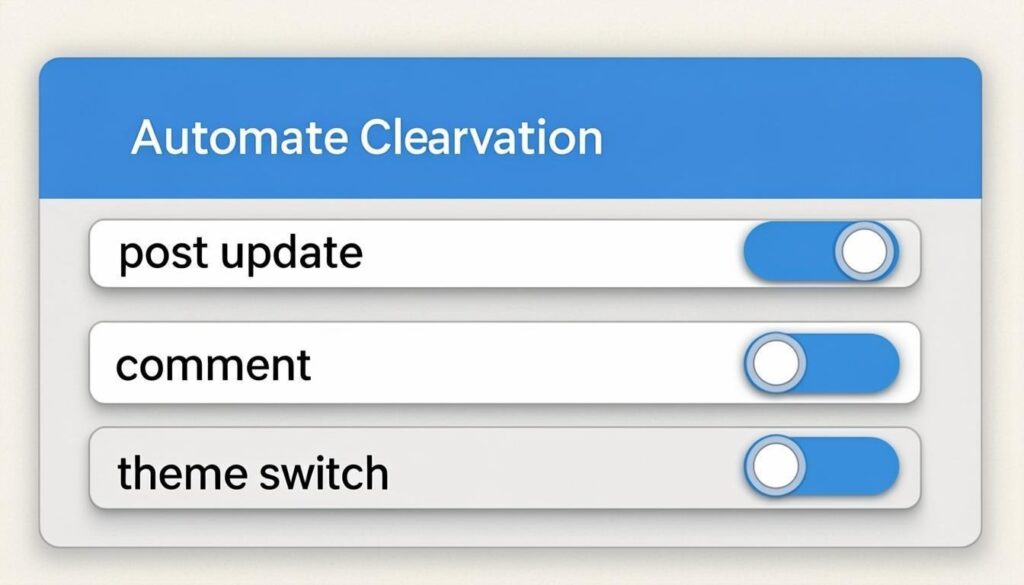
Figure 2: FlynCache Auto-Purge Configuration panel
Site Events
In addition to content-specific events, FlynCache also monitors broader site-level events that typically affect the entire site. These include WordPress core updates, widget changes, menu modifications, customizer changes, permalink structure updates, and user role changes. When any of these events occur, FlynCache automatically performs a full cache purge across all configured cache types to ensure complete consistency across your entire site.
Related URL Purging
When a specific post or page is updated, FlynCache goes beyond simply purging that single URL. It intelligently identifies and purges all related URLs that might display or reference the updated content. This includes the post’s single URL, any category and tag archive pages that include the post, author archive pages, date-based archive pages, custom taxonomy archives, the blog index page (if the post appears on the first page), and any homepage cache. This comprehensive approach ensures that the updated content is reflected everywhere it appears on your site, without requiring a full cache purge that would unnecessarily discard valid cache entries for unchanged content.
Recommended Settings
For most WordPress sites, we recommend enabling all content events and site events to ensure maximum cache freshness. The related URL purging feature should also be enabled, as it provides the best balance between performance and freshness. If your site receives very high traffic and you publish content frequently, you may want to disable the comment posted event to reduce the frequency of partial purges. For e-commerce sites using WooCommerce, ensure that product update and category update events are enabled to keep product pages and shop listings current.
10. Manual Purge
Purge All Cache
Sometimes you need to clear your entire cache at once, such as after making significant changes to your site’s design, updating WordPress core, or installing new plugins. FlynCache provides a “Purge All” button that clears the cache across all enabled cache types simultaneously. When you click this button, the plugin sends purge commands to every configured cache backend including Nginx FastCGI cache, Redis, LiteSpeed, Cloudflare, and any custom CDNs you have set up.
The purge-all operation is processed asynchronously for cloud-based cache types (Cloudflare and custom CDNs) to prevent timeouts. The plugin displays a progress indicator showing the status of each cache type’s purge operation. For local cache types (Nginx FastCGI and Redis), purging is typically completed within seconds. For Cloudflare, zone purges may take up to 30 seconds to propagate across all edge servers, while URL purges are usually processed within 5 seconds. You can verify that all caches have been successfully purged by checking the status indicators on the dashboard.
Purge Specific URLs
For more targeted cache management, FlynCache allows you to purge specific URLs individually. This is useful when you have updated a single post and want to immediately clear its cached version without affecting the rest of your site’s cache. Navigate to the Manual Purge section and enter the full URL of the page you want to purge (including the https:// prefix). You can enter multiple URLs separated by new lines to purge several pages at once. The plugin will send purge requests to all configured cache types for each specified URL.
Quick Purge Buttons
FlynCache provides quick-action purge buttons throughout the WordPress admin interface for convenient cache management. These buttons are available on the FlynCache dashboard, on individual post and page edit screens (via the admin bar), and in the WordPress admin toolbar. The quick purge buttons allow you to purge the current page’s cache with a single click, purge the entire site cache, or purge all caches of a specific type (Nginx, Redis, LiteSpeed, Cloudflare, or Custom CDN). These buttons are especially useful for developers and content editors who need to verify changes without navigating away from the page they are working on.
- To purge the current page: Click the “Purge This Page” button in the admin bar while viewing any frontend page.
- To purge all Nginx cache: Go to FlynCache > Dashboard and click “Purge Nginx Cache.”
- To purge all Redis cache: Go to FlynCache > Dashboard and click “Purge Redis Cache.”
- To purge all caches: Go to FlynCache > Dashboard and click “Purge All Caches.”
11. Tools & Debugging
Server Information
The Server Information panel in FlynCache provides a comprehensive overview of your server environment, which is invaluable for troubleshooting and optimization. This panel displays detailed information about your web server software and version, PHP version and extensions, WordPress version, active caching technologies and their status, available disk space, memory usage, and network connectivity to external cache services. All of this information is presented in a clean, organized format that makes it easy to identify potential issues and share details with your hosting provider or system administrator when requesting support.
Export / Import Settings
FlynCache allows you to export your entire plugin configuration as a JSON file and import it on another WordPress installation. This feature is extremely useful when migrating your site to a new server, setting up a staging environment, or managing multiple WordPress sites with similar configurations. To export your settings, navigate to FlynCache > Tools and click the “Export Settings” button. A JSON file will be downloaded to your computer containing all of your cache type configurations, auto-purge rules, custom CDN settings, and preferences. To import settings on another site, click the “Import Settings” button, select the JSON file, and confirm the import.
Reset to Defaults
If you need to start fresh with your FlynCache configuration, the Reset to Defaults feature clears all plugin settings and restores the original default values. This action removes all configured cache paths, API tokens, custom headers, auto-purge rules, and preferences. It does not delete any cached content itself (you should use the Purge All function for that). After resetting, the plugin will run its auto-detection system again to identify your server’s caching environment and suggest initial settings.
Debug Information
When troubleshooting issues, the Debug Information panel provides detailed logs and diagnostic data that can help identify the root cause of problems. This panel records all cache purge operations (successful and failed), server detection results and any errors encountered, API communication logs for Cloudflare and custom CDNs, Redis connection details and error messages, and file system permission checks. You can copy the debug information to your clipboard for sharing with support staff or save it as a text file for your records. When requesting support, always include the debug information as it contains critical details that help diagnose issues quickly.
- Navigate to FlynCache > Tools in your WordPress admin.
- Click “View Debug Information” to see the full diagnostic log.
- Review the entries for any red error messages or warnings.
- Click “Copy to Clipboard” or “Download as File” to save the information.
- Share the debug information with your hosting provider or the FlynCache support team.
12. Troubleshooting
This section covers the most common issues encountered by FlynCache users and provides step-by-step solutions for each. If you experience a problem not covered here, please refer to the Support & Resources section at the end of this guide for additional assistance options.
Cache Not Detected
If FlynCache reports that no cache types were detected on your server, there are several possible causes. First, verify that your caching technology is actually installed and running on your server. Check with your hosting provider to confirm which caching systems are available. Second, ensure that the PHP process running WordPress has sufficient permissions to read cache directories and configuration files. You can test this by temporarily granting broader read permissions to the relevant directories. Third, if your cache paths are non-standard, you may need to configure them manually in the plugin settings rather than relying on auto-detection.
Permission Errors
Permission errors occur when the PHP process does not have the required file system access to read from or write to cache directories. This is particularly common with Nginx FastCGI Cache, where the cache directory is often owned by the Nginx user while PHP-FPM runs under a different user. To resolve this issue, identify the PHP-FPM process user (typically www-data on Ubuntu/Debian or nginx on CentOS), and grant that user read/write access to the cache directory using chown and chmod commands. For Redis, ensure that the Redis server is configured to accept connections from the PHP process.
Redis Connection Failed
If FlynCache is unable to connect to your Redis server, verify that Redis is running by executing “redis-cli ping” on your server (it should return “PONG”). Check that the Redis server is listening on the correct host and port by examining your redis.conf file. If you are using a Unix socket, verify that the socket file exists and is accessible to the PHP process. If Redis requires authentication, ensure the password in FlynCache matches the requirepass directive in your Redis configuration. Firewall rules may also block connections, so verify that the Redis port is open between your web server and the Redis server.
Cloudflare API Errors
Cloudflare API errors typically fall into three categories: authentication errors, permission errors, and rate limit errors. Authentication errors (HTTP 401/403) indicate that your API token is invalid, expired, or does not have the required permissions. Verify that you have created the token with the correct Zone > Cache Purge > Purge permission and that it is scoped to the correct zone. Permission errors mean the token exists but lacks the necessary scope. Rate limit errors (HTTP 429) occur when too many API requests are sent in a short period. If you encounter rate limiting, reduce the frequency of purge operations or implement batch purging.
Cache Not Purging
If cache purges are being triggered but the cached content is not being refreshed, several factors may be at play. For Nginx FastCGI Cache, verify that the cache_path directive in your Nginx configuration matches the path configured in FlynCache. For Redis, ensure that the correct database is being flushed. For Cloudflare, check that your Zone ID is correct and that the API token has not expired. For custom CDNs, verify that the purge endpoint URL and authentication headers are correct. Additionally, check if there are intermediate caches (such as your hosting provider’s CDN or a reverse proxy) that may be serving cached content independently of the caches managed by FlynCache.
| Issue | Common Cause | Solution |
|---|---|---|
| Cache not detected | Non-standard paths or restricted permissions | Configure cache path manually; check PHP user permissions |
| Permission denied | PHP user lacks read/write access to cache dir | chown/chmod cache directory to match PHP-FPM user |
| Redis connection failed | Redis not running or wrong host/port/password | Verify Redis is running; check host, port, and credentials |
| Cloudflare API error | Invalid token, wrong Zone ID, or rate limiting | Recreate token with correct permissions; verify Zone ID |
| Cache not purging | Path mismatch or intermediate cache layer | Verify all cache paths; check for additional cache layers |
Table 2: Common issues and quick solutions reference
13. Frequently Asked Questions
Q1: Does FlynCache work with shared hosting?
FlynCache works best with VPS, dedicated, or cloud hosting where you have control over your server configuration. While some features may work on shared hosting (such as Cloudflare cache purging), the Nginx FastCGI cache and Redis features require server-level access. If you are on shared hosting, check with your provider to see if they support these technologies. Cloudflare CDN integration and custom CDN configuration will work on any hosting environment.
Q2: Will purging cache slow down my site?
No. FlynCache is designed to perform cache purges efficiently with minimal impact on site performance. Purge operations are lightweight and typically complete in milliseconds for local caches (Nginx, Redis) and within seconds for remote services (Cloudflare, CDNs). The plugin processes purge operations asynchronously where possible to prevent any blocking behavior. In fact, by keeping your cache fresh and avoiding stale content issues, FlynCache helps maintain optimal site performance.
Q3: Can I use FlynCache alongside other caching plugins?
FlynCache is designed to work as a standalone cache management solution. However, it can coexist with certain plugins. For example, the LiteSpeed Cache (LSCWP) plugin is specifically supported for integration. For other caching plugins like WP Rocket or W3 Total Cache, we recommend disabling their cache purging features if you are using FlynCache to manage the same cache layers, to avoid conflicts or duplicate purge operations. FlynCache manages server-level caches (Nginx, Redis) independently from WordPress-level page caching.
Q4: How often should I purge my cache manually?
With auto-purge enabled, you should rarely need to manually purge your cache. FlynCache automatically clears relevant cached content whenever you publish, update, or delete posts and pages. Manual purging is primarily useful after making significant site-wide changes such as updating your theme, modifying widgets, changing your site’s navigation menus, or installing major plugin updates that affect the front end of your site.
Q5: Is it safe to use the “Purge All” function on a production site?
Yes, purging all caches is completely safe. The worst that will happen is a temporary increase in server load as fresh cache entries are generated for incoming requests. No data is lost during a cache purge, and your site will continue to function normally. The cache will be repopulated naturally as visitors access your pages. For high-traffic sites, you may want to schedule purge-all operations during lower-traffic periods to minimize the impact of cache regeneration.
Q6: Does FlynCache support WooCommerce or other e-commerce plugins?
Yes, FlynCache works well with WooCommerce and other e-commerce plugins. The auto-purge system detects product updates, category changes, and other WooCommerce-specific content events to ensure that product pages and shop listings are kept current. We recommend enabling auto-purge for all content events when using WooCommerce to prevent customers from seeing outdated product information, prices, or stock levels. If you experience issues with cart or checkout page caching, ensure those pages are excluded from your Nginx FastCGI cache configuration.
Q7: How do I know if FlynCache is actively purging my cache?
FlynCache logs all purge operations in the Debug Information panel (accessible from FlynCache > Tools). Each purge event is recorded with a timestamp, the triggered event type, the URLs affected, and the cache types targeted. You can review these logs at any time to verify that purges are occurring as expected. Additionally, you can test the functionality by making a change to a post and then checking whether the updated content appears immediately on the front end.
14. Support & Resources
If you need additional help with FlynCache, the following resources are available to assist you. Whether you have a technical question, found a bug, or want to suggest a new feature, we encourage you to reach out through any of the channels listed below.
WordPress.org Support Forum
The official WordPress.org support forum for FlynCache is the primary channel for community support. You can ask questions, report issues, and help other users in the community. The plugin author and other experienced users actively monitor the forum and provide timely responses. To access the forum, visit the plugin’s WordPress.org support page.
Official Support Page
For comprehensive documentation, tutorials, and advanced guides, visit the official FlynCache support page on Wasim Akram’s website. This page includes detailed setup instructions for various hosting environments, video tutorials, and best practices for cache optimization.
https://digitalwasim.com/flynginx-support
Buy Me a Coffee
If you find FlynCache useful and would like to support its continued development, consider buying the developer a coffee. Your support helps fund ongoing plugin maintenance, new feature development, and timely support responses. Every contribution is deeply appreciated and directly contributes to making the plugin better for everyone.
Leave a Review
Your feedback is incredibly valuable and helps other WordPress users discover FlynCache. If you have a positive experience with the plugin, please consider leaving a review on the WordPress.org plugin repository. Reviews help the plugin gain visibility and provide valuable feedback for future improvements. Even a brief review mentioning your use case and experience can make a significant difference.
Additional Resources
For general information about the plugin and the developer, visit the official website:
| Resource | Purpose | URL |
|---|---|---|
| Support Forum | Community support and discussions | WordPress.org Forum |
| Support Page | Documentation and tutorials | digitalwasim.com/flynginx-support |
| Developer Website | Plugin author and other projects | digitalwasim.com |
| Buy Me a Coffee | Support plugin development | buymeacoffee.com/wasimb |
| Reviews | Leave feedback on WordPress.org | Plugin Reviews |
Table 3: FlynCache support and resource links