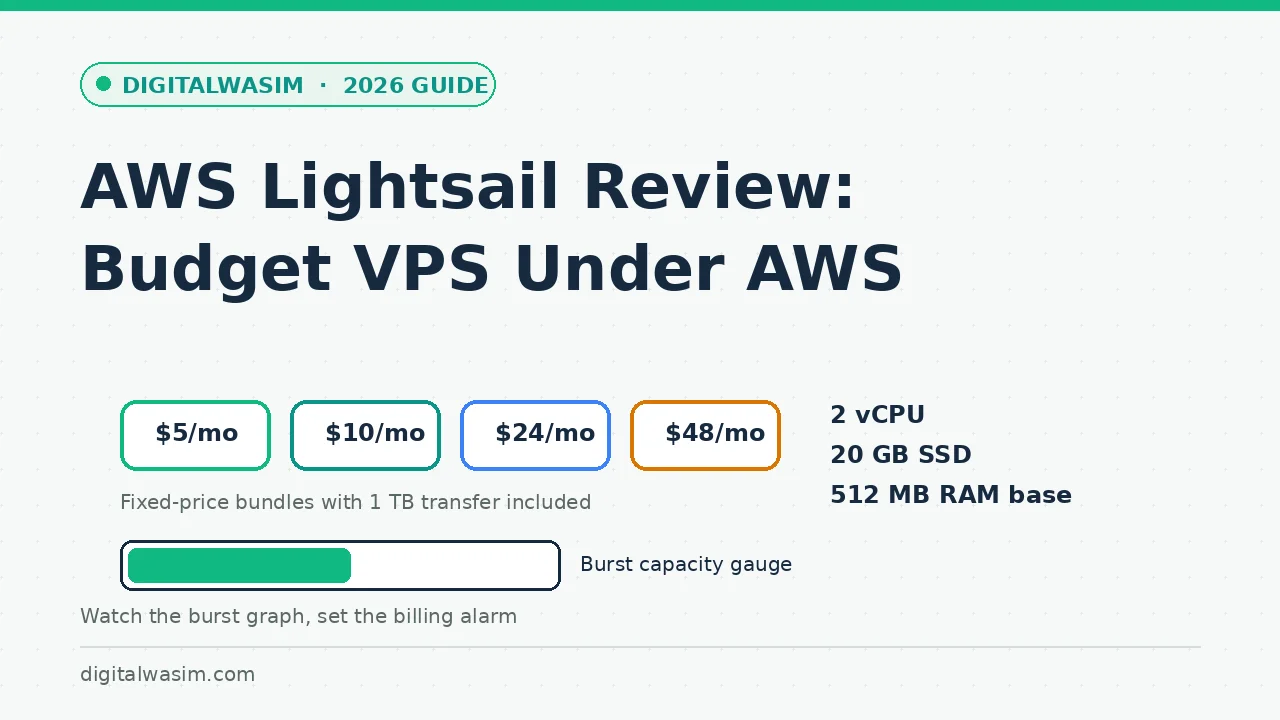
AWS Lightsail keeps showing up in the same sentence as four-dollar VPS deals, and most reviews either cheer for the price or warn vaguely about "AWS complexity." Neither response helps you decide. The honest question is narrower: for a blog with modest traffic, does Lightsail deliver reliable performance for less money than a traditional VPS, and where does the cheap plan stop being cheap?
We looked at the current plan lineup, the transfer quotas, the burst capacity system that quietly shapes real-world performance, and the fee traps that catch first-time users. This AWS Lightsail review gives you the math for three realistic blog sizes, a first-hour setup order that avoids common mistakes, and a clear list of workloads that belong somewhere else.
Quick answer:What Lightsail Actually Is and What the Plans Cost
Lightsail is AWS's simplified compute line: fixed-price virtual machines, prebuilt application images, and a control panel designed for people who never want to see IAM policies or VPC subnet menus. Under the hood it runs on the same infrastructure as EC2, which is why performance is more consistent than the price suggests. You get the AWS network and reliability without the AWS console learning curve, and you can export an instance to EC2 later if your needs outgrow the simple tier.
Lightsail pricingWhat makes the offer interesting for bloggers specifically is the bundle philosophy. Storage, RAM, CPU, and transfer come as one fixed monthly price, so a traffic spike does not multiply your bill the way pure metered cloud billing does. The risk moves to the edges of the bundle: burst capacity on the CPU side and the 9-cent-per-gigabyte overage on the transfer side. Understand those two edges and the fixed-price promise holds.
Lightsail Plan Math for Three Real Blog Sizes
Here is the plan math for three realistic blog profiles. We assume a caching layer is installed, images are compressed, and a CDN fronts the site, because that is how any serious blog should run regardless of host. Monthly cost includes the instance and typical snapshot usage, rounded to keep the comparison honest rather than precise to the penny.
| Blog profile | Plan | Monthly cost | What limits it first |
|---|---|---|---|
| New blog, under 10k visits/mo | 5 dollars, 512 MB | About 5-6 dollars | RAM before CPU; caching is mandatory |
| Growing blog, 10k-60k visits/mo | 10-24 dollars, 1-4 GB | 10-25 dollars | Burst capacity during publish-day spikes |
| Busy blog, 60k+ visits/mo | 48 dollars, 8 GB | About 48-55 dollars | Disk I/O and transfer overage |
The pattern worth noticing: at every tier, the first limiter is rarely the CPU core count. It is RAM on the small plans and transfer beyond the quota on the busy ones. A plugin-heavy WordPress install can push 512 MB close to its ceiling with admin tasks alone, so the 10-dollar plan with 2 GB of RAM is the practical minimum for anyone running SEO plugins, page builders, or a security scanner.
Burst Capacity: The Spec Sheet Line That Decides Everything
burst capacity guideFor a blog, the practical translation is simple. Traffic spikes from a ranking jump, a newsletter send, or a social hit are short and burst handles them fine. Sustained load from a backup plugin, an import, or an uncached crawler is what drains the tank. If your burst capacity graph trends downward for days, something is wrong with your caching setup or a process is looping, and the metric gives you a clean way to see it before readers feel it.
Transfer Overage and the Fees That Surprise People
Transfer is the other edge of the bundle. The included quota is generous at the low end, and Lightsail does not silently throttle you when you cross it; it bills. At 9 cents per gigabyte, each extra 100 GB adds 9 dollars, which is why a viral month without a CDN can turn a 5-dollar server into a 50-dollar invoice. This is one of the strongest arguments for putting a CDN in front of the origin server from day one, because cached assets then come from the edge, not from your quota.
- Set an AWS budget alarm at 10 dollars so overage emails you the same day, not next month.
- Front the site with a CDN and cache HTML where your setup safely allows it.
- Serve images in modern formats so transfer per visit drops before traffic grows.
- Check the burst capacity graph weekly during your first two months to learn your site's rhythm.
- Snapshot before plugin updates; restore tests cost cents and save weekends.
Snapshots: Cheap Insurance Done Right
Snapshots are the backup story on Lightsail, and the pricing encourages the right habit. Snapshot storage bills from roughly five cents per gigabyte per month based on the space the snapshot uses, so protecting a small blog costs cents, not dollars. The mechanics matter though: a snapshot is a full instance image, restoring means launching a new instance from it, and the DNS or static IP has to be reattached. That makes snapshots perfect for disaster recovery and terrible for granular restore, which is why the WordPress database deserves an additional off-server export on a schedule.
A sustainable setup for a blogger looks like three layers. Weekly scheduled snapshots for the whole server, taken automatically and kept for two or three weeks. A daily database export pushed off-server, because posts and comments are the only part of a blog that cannot be rebuilt. And a manual snapshot taken before every plugin or core update, so a bad update rolls back in minutes instead of becoming an afternoon. The total cost of all three is typically under a dollar a month on a small instance, which is cheaper than the lost weekend it prevents.
First-Hour Setup Order That Avoids Rework
Getting the instance running is faster than most VPS platforms because the application images arrive preconfigured. The first-hour order that avoids rework looks like this:
- Create the instance from the WordPress blueprint and attach a static IP, which is free while attached.
- Point your domain with an A record, then add the CDN layer and confirm the origin is hidden where possible.
- Install a caching plugin, enable page cache and object cache if RAM allows, and compress images.
- Take your first manual snapshot, then schedule snapshots so the habit exists before you need it.
- Open the firewall only for SSH from your IP, HTTP, and HTTPS, and enable automatic security updates.
- Run a speed test before and after caching so you know what the stack actually changed.
Where Lightsail Is the Wrong Tool
No host review is honest without the failure cases. Lightsail is the wrong tool when you need sustained CPU, such as rendering video, running heavy analytics jobs, or hosting a busy forum with real-time features. Baseline CPU on small plans is low, and living at zero burst capacity is not a performance strategy. It is also the wrong tool if you refuse to look at any dashboard ever: the billing alarm and burst graph take ten minutes a month, and skipping them is how the cheap plan earns its surprise fees.
Support is the other trade. The standard Lightsail tier includes community support and documentation, not a phone queue, which matches the reality that a 5-dollar product cannot fund 24/7 agent support. For a blogger who can follow a setup guide and search error messages, that is an acceptable trade for the price. If you need hand-holding at midnight, a managed host charging ten times more is the honest alternative, not a better version of this one.
Two adjacent services round out the picture for publishers who outgrow the basic instance. Lightsail offers managed databases with automated backups and daily system maintenance, which removes the self-managed MySQL chore from a growing WordPress stack for a few dollars more. Managed WordPress images with caching preconfigured also exist, trading some control for convenience. Both live inside the same simple console, so the upgrade path stays on one dashboard, one bill, and one mental model instead of fragmenting across providers the way a pieced-together budget stack usually does.
Who Should Choose It and Who Should Not
Lightsail fits three groups cleanly. First, new bloggers who want AWS reliability at junk-drawer prices and are willing to learn one simple dashboard. Second, site owners consolidating small projects who want snapshots and static IPs without EC2 ceremony. Third, developers staging client sites who value the export-to-EC2 path when a project graduates. It fits poorly for hand-off-to-agency clients who expect managed updates, and for CPU-hungry workloads of any kind.
complete guide to choosing blog hosting Linode under Akamai review site speed guide for better SEO Core Web Vitals optimization guide