
Complete Setup Guide & Documentation
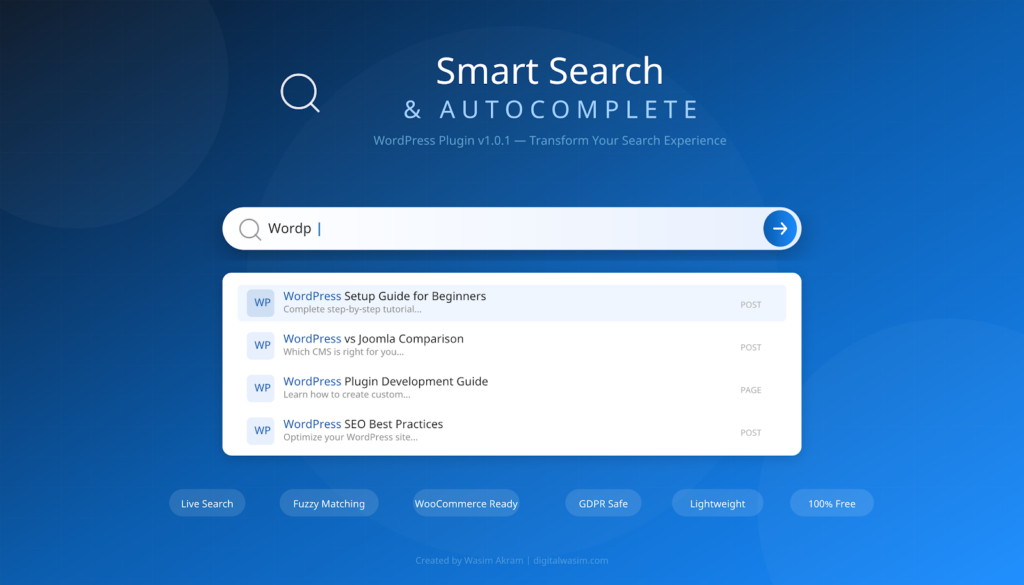
WordPress Plugin v1.0.1
Developed by Wasim Akram
GPL v2+ License | 100% Free & Open Source
Table of Contents
Introduction 1
Default WP Search vs Smart Search 1
Features Overview 2
1. Live Autocomplete Search 3
2. Fuzzy Matching (Typo Tolerance) 3
3. Relevance-Based Ranking 3
4. Keyword Highlighting 3
5. Keyboard Navigation 4
6. Recent Searches 4
7. WooCommerce Compatible 4
8. Complete Appearance Customization 4
9. Search Analytics 5
10. Lightweight & GDPR Friendly 5
Installation Guide 5
Method 1: WordPress Plugin Directory 6
Method 2: Upload ZIP Manually 6
Method 3: FTP / File Manager 6
System Requirements 7
Settings & Configuration 7
General Settings 7
Content Settings 8
Appearance Settings 8
Shortcode & Widget Guide 9
Basic Shortcode 9
Widget Setup 10
Before vs After 11
Responsive Design 12
WooCommerce Support 13
Search Analytics 13
Keyboard Navigation 14
Troubleshooting & FAQ 14
For Developers 15
Changelog 16
Support & Feedback 16
Note: Right-click the Table of Contents and select “Update Field” to refresh page numbers after editing.
Introduction
WordPress ka default search bahut weak hota hai — isme fuzzy matching nahi hoti, autocomplete nahi aata, aur results bilkul irrelevant aate hain. Users ko poori search query type karke search button press karna padta hai, fir page reload hota hai, aur jo results aate hain wo mostly irrelevant hote hain. Ye experience especially mobile users ke liye bahut frustrating hai.
Smart Search & Autocomplete plugin exactly yahi problem solve karta hai. Ye plugin aapke WordPress site ke search ko professional-level autocomplete, fuzzy matching, aur beautifully styled results ke saath upgrade kar deta hai. Aur sabse best baat ye hai ki activate karte hi kaam shuru hota hai — koi configuration zaroori nahi! Plugin bilkul out-of-the-box kaam karta hai, lekin agar aap customize karna chahte hain to poore control ke saath 15+ settings available hain.
Ye plugin WordPress community ke liye ek free gift hai jo search experience ko next level pe le jaata hai. Baaki search plugins ya to bahut heavy hain (20+ files, multiple libraries load karte hain), ya phir free version mein bahut limited features dete hain. Smart Search & Autocomplete ka design philosophy simple hai: activate karo, kaam karo, customize karna ho to option do. Koi bloat nahi, koi unnecessary script nahi, koi upsell nahi.
Default WP Search vs Smart Search
| Feature | Default WP Search | Smart Search |
|---|---|---|
| Autocomplete | ❌ No autocomplete | ✅ Live AJAX suggestions |
| Fuzzy Matching | ❌ Exact match only | ✅ Typo tolerant |
| Page Speed | 🐢 Slow page reload | ⚡ Instant, no reload |
| Result Relevance | 🔍 Random ordering | 📈 Ranked by relevance |
| Mobile UX | 📱 Basic | 📱 Fully optimized |
| Customization | ❌ None | ✅ 15+ settings |
| External APIs | ❌ None | ✅ None (GDPR safe) |
Table 1: Feature comparison — Default WordPress Search vs Smart Search & Autocomplete
Features Overview
Smart Search & Autocomplete mein 10+ powerful features hain jo bilkul free available hain. Har feature carefully designed hai taaki aapke users ko best possible search experience mil sake. Neeche detailed overview diya gaya hai:
Figure 1: Features Overview — 9 core features of Smart Search & Autocomplete
1. Live Autocomplete Search
Jab user type karna start kare, real-time mein suggestions dropdown mein dikhne lagte hain — page reload ki zaroorat nahi hoti. AJAX technology se backend pe search hota hai aur results smoothly dropdown mein aate hain. Ye feature users ka bahut time bachata hai kyunki unhe poora query type karne ki zaroorat nahi padti. Jaise hi 2 characters type hote hain, suggestions shuru ho jaati hain.
2. Fuzzy Matching (Typo Tolerance)
Yeh feature bahut powerful hai. Agar user “Wordpres” type kare to bhi plugin “WordPress” ke results dikhayega. Common spelling mistakes automatically catch karta hai — titles mein word match ko priority milti hai. Multiple LIKE patterns use karke search hota hai jo exact phrase match aur individual word match dono cover karte hain.
3. Relevance-Based Ranking
Har result ko ek relevance score milta hai based on: Title Match (20 points) agar search query exact title mein match hota hai, Published Status (10 points) for published posts, Post Type Priority (Posts 5, Pages 3, Custom 1), aur Recency — naye posts ko preference milti hai. Ye scoring system ensure karta hai ki users ko hamesha sabse relevant results pehle dikhenge.
4. Keyword Highlighting
Search results mein jo words match karte hain wo bold/highlight dikhte hain (blue color mein) — users ko turant pata chal jata hai ki konsa word match hua. Ye feature results ki readability bahut improve karta hai aur users ko quickly identify karne mein help karta hai ki kaunsa result unke liye relevant hai.
5. Keyboard Navigation
Poori tarah se keyboard se search kar sakte hain: Arrow Down (↓) se next result pe move karo, Arrow Up (↑) se previous result pe jao, Enter se selected result pe jao, aur Escape se dropdown band karo. Ye feature accessibility ke liye bahut important hai aur power users ko bahut help karta hai.
6. Recent Searches
Plugin automatically recent searches save karta hai browser ke localStorage mein. Jab user search box pe click kare (empty state mein) to purani searches dikhti hain — ek click pe wahi search dobara kar sakte hain. Ye feature users ka time bachata hai aur frequently searched topics ko quickly access karne mein help karta hai.
7. WooCommerce Compatible
Agar aapke site pe WooCommerce installed hai to automatically products search mein aa jaate hain — saath mein price display, sale badge (red “Sale” label), aur product image bhi dikhta hai. Featured products ko blue badge milta hai. Koi extra setup nahi chahiye — WooCommerce detect hone pe automatically activate ho jaata hai.
8. Complete Appearance Customization
Admin settings mein 7 color/style settings hain: Primary Color, Background Color, Text Color, Border Color, Border Radius (0-30px), Font Size (12-22px), aur Input Width. Sab colors WordPress Color Picker se live choose kar sakte hain. CSS Custom Properties (CSS Variables) ka use hota hai taaki changes instantly reflect hon bina page reload ke.
9. Search Analytics
Plugin automatically track karta hai konse search terms sabse zyada type ho rahe hain aur users kis result pe click kar rahe hain. Ye data aapke WordPress database mein store hota hai — koi external API call nahi hoti. Popular search terms, zero-result terms (content gap identification), aur click tracking sab tracked hota hai.
10. Lightweight & GDPR Friendly
Total plugin size sirf 164KB hai. Zero external JavaScript libraries load nahi hoti. No cookies required, no external API calls, no third-party tracking. Fully GDPR compliant — sab data aapke hi server pe. Sirf 2 small files load hote hain: ek CSS (4KB) aur ek JS (8KB).
Installation Guide
Smart Search & Autocomplete install karna bahut aasan hai. 3 different methods available hain — aap jo bhi convenient lage use choose kar sakte hain. Neeche step-by-step guide di gayi hai har method ke liye:
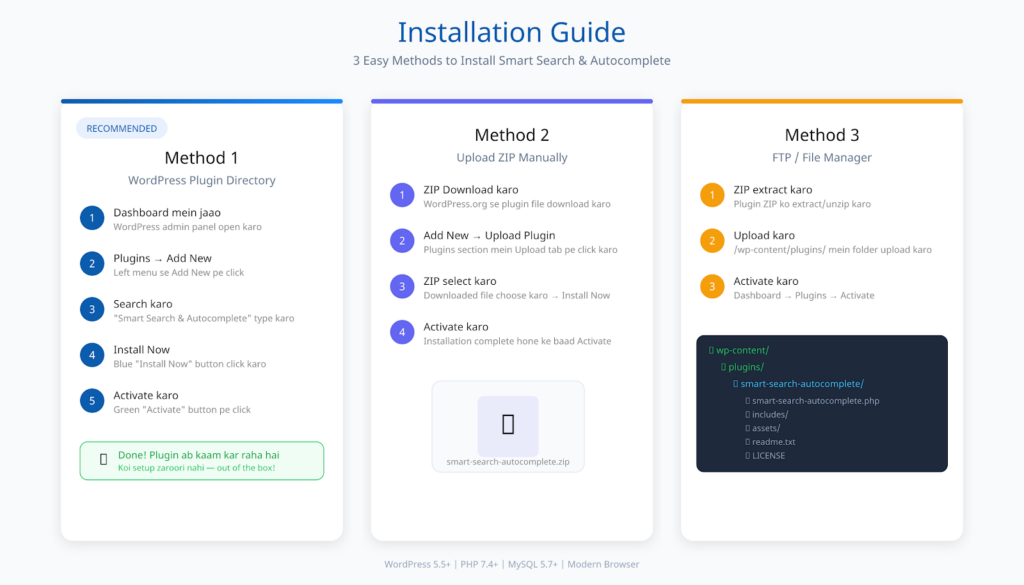
Figure 2: Installation Guide — 3 easy methods to install Smart Search & Autocomplete
Method 1: WordPress Plugin Directory (Recommended)
- Apne WordPress dashboard mein jaao
- Plugins → Add New pe click karo
- Search bar mein “Smart Search & Autocomplete” type karo
- Install Now pe click karo
- Activate pe click karo
- Bas! Plugin ab kaam kar raha hai.
Method 2: Upload ZIP Manually
- WordPress.org se plugin ZIP download karo
- Dashboard → Plugins → Add New → Upload Plugin
- Downloaded ZIP file select karo aur Install Now pe click karo
- Activate pe click karo
Method 3: FTP / File Manager
- Plugin ZIP extract karo
- smart-search-autocomplete folder ko /wp-content/plugins/ mein upload karo
- WordPress dashboard → Plugins → Activate
System Requirements
| Requirement | Minimum | Recommended |
|---|---|---|
| WordPress | 5.5+ | 6.0+ |
| PHP | 7.4 | 8.0+ |
| MySQL | 5.7 | 8.0+ |
Table 2: System requirements for Smart Search & Autocomplete
Settings & Configuration
Plugin activate hone ke baad automatically kaam shuru ho jata hai. Agar aap “Replace Default Search” option enable chhodte hain (jo by default hai), to aapka existing WordPress search form automatically Smart Search mein convert ho jayega. Configuration ke liye Dashboard → Settings → Smart Search pe jao.
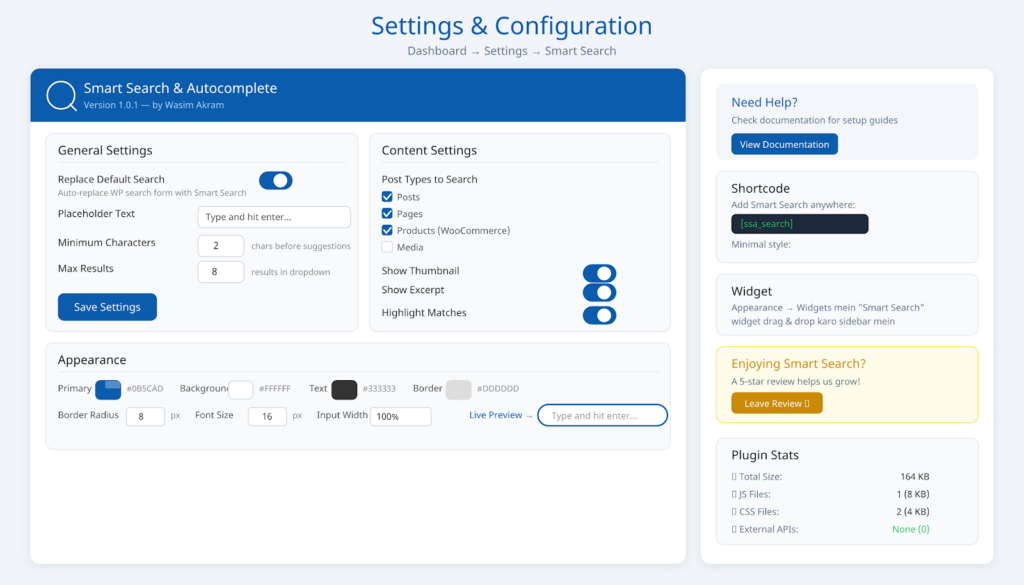
Figure 3: Settings Panel — All configuration options with live color pickers
General Settings
| Setting | Description | Default |
|---|---|---|
| Replace Default Search | WP search form auto-replace kare | Enabled |
| Placeholder Text | Search input mein dikhne wala text | Type and hit enter… |
| Minimum Characters | Suggestions start hone ke liye minimum chars | 2 |
| Max Results | Dropdown mein maximum results | 8 |
Table 3: General settings and their default values
Content Settings
| Setting | Description | Default |
|---|---|---|
| Post Types | Kaun se post types search mein hon | Posts + Pages |
| Show Thumbnail | Results mein featured image dikhaye | Enabled |
| Show Excerpt | Content ka short preview dikhaye | Enabled |
| Highlight Matches | Matching keywords bold kare | Enabled |
Table 4: Content settings for search result customization
Appearance Settings
| Setting | What It Does | Default |
|---|---|---|
| Primary Color | Focus state, button, links ka color | #0B5CAD (Blue) |
| Background | Search input ka background | #FFFFFF |
| Text Color | Input text aur result titles | #333333 |
| Border Color | Search box border | #DDDDDD |
| Border Radius | Corner roundness (0-30px) | 8px |
| Font Size | Input text size (12-22px) | 16px |
| Input Width | Search box ki width | 100% |
Table 5: Appearance customization settings
Shortcode & Widget Guide
Smart Search ko kisi bhi page, post, ya widget area mein shortcode se add kar sakte hain. Neeche sabhi available options ki complete guide di gayi hai. Shortcode WordPress ka built-in feature hai jo aapko kisi bhi content area mein dynamic content inject karne deta hai.
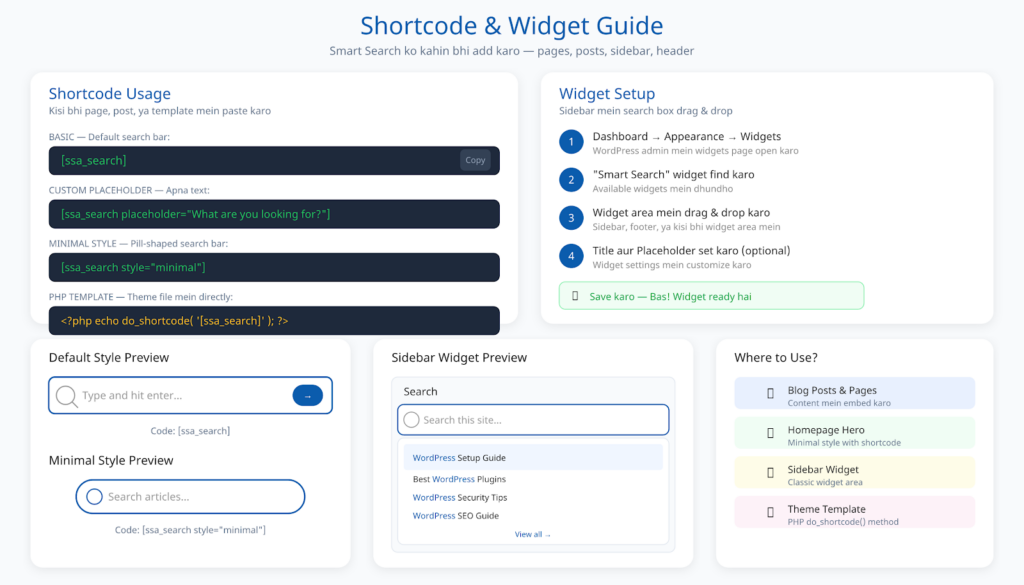
Figure 4: Shortcode & Widget usage guide with live previews
Basic Shortcode
[ssa_search]
Ye default style ka search bar dikhata hai jo settings page ke configuration ke mutabiq styled hota hai. Placeholder text, colors, width — sab settings se aata hai.
Custom Placeholder
[ssa_search placeholder=”What are you looking for?”]
Placeholder attribute se aap search box mein custom text dikhwa sakte hain. Ye alag-alag pages ke liye alag placeholder dikhane mein help karta hai.
Minimal Style
[ssa_search style=”minimal”]
Minimal style ek rounded, pill-shaped search bar deta hai jo header ya hero section ke liye perfect hai. Isey homepage pe center mein bada search bar dikhane ke liye use karo.
PHP Template Usage
<?php echo do_shortcode( ‘[ssa_search]’ ); ?>
Agar aap apne theme ke template file (jaise header.php) mein directly add karna chahte hain to ye PHP code use karo. Isse aap search box ko kisi bhi position pe place kar sakte hain.
Widget Setup
- Dashboard → Appearance → Widgets pe jao
- “Smart Search” widget ko desired widget area mein drag & drop karo
- Optional: Title aur Placeholder set karo
- Save karo
Widget perfect hai sidebar mein search box add karne ke liye. Header mein search chahiye to shortcode use karo. Widget block editor aur classic editor dono mein kaam karta hai.
Before vs After
Ye section mein aap dekh sakte hain ki default WordPress search kaisa dikhta hai aur Smart Search activate karne ke baad kaisa ban jaata hai. Difference clearly visible hai — user experience mein major improvement aata hai.
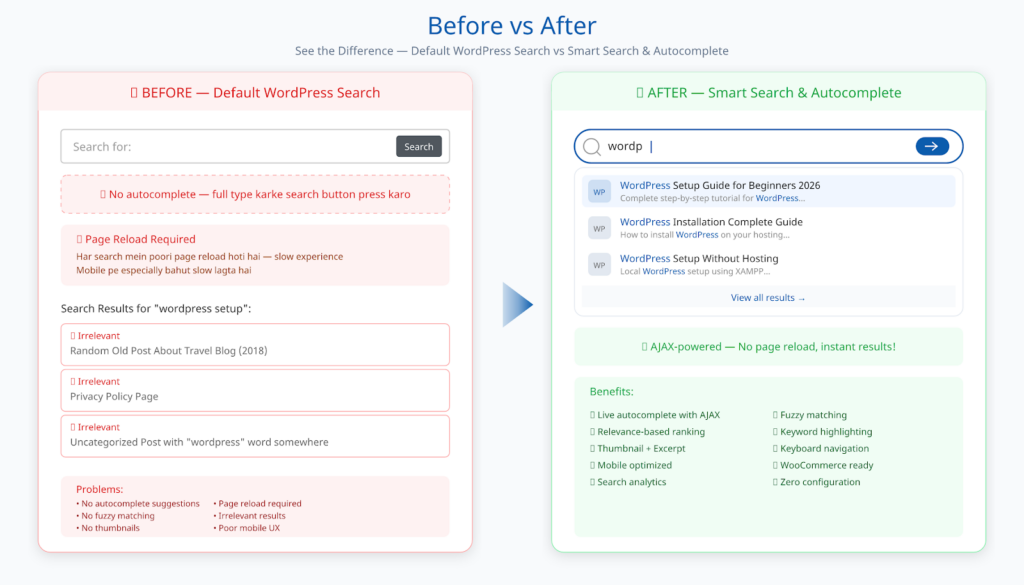
Figure 5: Before vs After — Visual comparison showing dramatic UX improvement
Before mein users ko manually type karna padta hai, page reload hoti hai, aur irrelevant results aate hain. After mein — live autocomplete suggestions, instant results, keyword highlighting, thumbnails, aur relevance-based ranking sab ek saath milta hai. Ye difference especially e-commerce aur content-heavy websites pe bahut zyada noticeable hai.
Responsive Design
Smart Search & Autocomplete 100% responsive hai — desktop, tablet, aur mobile sab pe perfectly kaam karta hai. Plugin mobile-first design approach se build kiya gaya hai. Search bar screen size ke hisaab se automatically adjust hota hai.
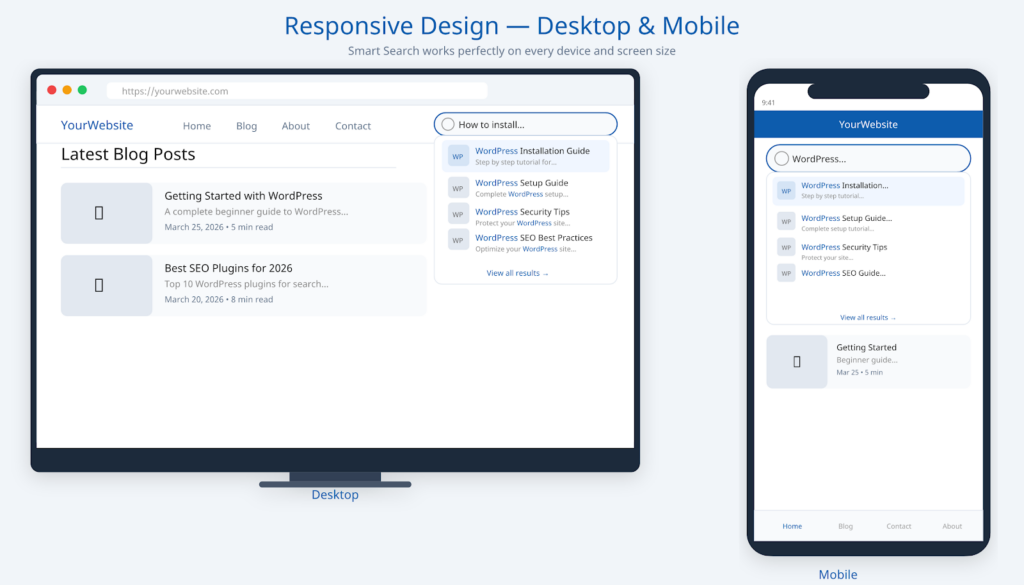
Figure 6: Responsive design — Desktop and mobile view comparison
Desktop pe full-width search bar dikhta hai with large dropdown results. Mobile pe compact design hai jo screen width ke andar perfectly fit hota hai. Touch events bhi properly handled hain — dropdown items ko touch karke select kar sakte hain. Keyboard navigation mobile pe bhi kaam karta hai agar external keyboard connected hai.
WooCommerce Support
Agar aapke site pe WooCommerce installed hai to Smart Search automatically products ko search mein include kar deta hai — koi extra setup nahi chahiye. Plugin WooCommerce ke class exist karne pe automatically WooCommerce extension load karta hai. Ye automatic detection feature hai.
- Product Search — Products automatically search results mein aate hain
- Price Display — Results mein product price dikhta hai Indian currency mein
- Sale Badge — Agar product sale pe hai to red “Sale” badge dikhta hai
- Featured Badge — Featured products ko blue badge milta hai
- Product Image — WooCommerce product image thumbnail ke roop mein dikhta hai
WooCommerce products ko exclude karna ho to Settings → Content Settings → Post Types mein “product” ko uncheck kar do. Ye feature sirf tab kaam karta hai jab WooCommerce active hai.
Search Analytics
Smart Search automatically track karta hai konse search terms sabse zyada type ho rahe hain aur users kis result pe click kar rahe hain. Ye data aapke WordPress database mein store hota hai — koi external tracking nahi! Analytics feature completely private hai aur GDPR compliant.
- Search Terms — Konsa term search kiya gaya aur kitni baar
- Search Count — Har term kitni baar search hua
- Results Count — Har search mein kitne results mile
- Click Tracking — User kis post pe click kiya
- Zero-Result Terms — Konse search terms pe koi result nahi mila (content gap!)
Ye analytics aapko yeh samajhne mein help karta hai ki users kya dhundh rahe hain aur aapko kaunse topics pe content banana chahiye. Zero-result terms specially valuable hain kyunki ye aapko batate hain ki users kya chahte hain jo aapke paas nahi hai. Database mein 2 custom tables create hoti hain: {prefix}_ssa_search_terms aur {prefix}_ssa_search_clicks.
Keyboard Navigation
Smart Search poori tarah se keyboard-accessible hai. Ye feature accessibility ke liye bahut important hai aur screen reader users ke liye essential hai. ARIA labels bhi properly set kiye gaye hain.
| Key | Action |
|---|---|
| Arrow Down (↓) | Next result pe move karo |
| Arrow Up (↑) | Previous result pe jao |
| Enter | Selected result pe jao (ya form submit karo) |
| Escape | Dropdown band karo |
Table 6: Keyboard shortcuts for search navigation
Troubleshooting & FAQ
Agar aapko koi issue aa raha hai to neeche common problems aur unke solutions diye gaye hain. Zyada tar issues caching ya configuration se related hote hain aur easily fix ho jaate hain.
Q: Plugin activate kiya par search form change nahi hua?
A: Settings → Smart Search mein jaake “Replace Default Search” checkbox enable karo. Ya phir manually shortcode [ssa_search] use karo. Kuch themes custom search form use karti hain — uske liye shortcode ya widget use karo.
Q: Autocomplete results nahi dikh rahe?
A: Browser cache clear karo (Ctrl+Shift+R). Caching plugin hai to cache purge karo. Check karo JavaScript error to nahi aa raha (F12 → Console). Minimum Characters setting check karo (default: 2 — kam se kam 2 characters type karo).
Q: Search results mein koi post nahi aa raha?
A: Settings → Content Settings mein sahi post types selected hain ya nahi. Agar “post” aur “page” dono unchecked hain to results nahi aayenge. Posts ka status “Published” hai ya nahi bhi verify karo.
Q: Dropdown zyada niche ya upar dikh raha hai?
A: CSS conflict ho sakta hai aapke theme ke saath. Custom CSS mein ye code add karke fix kar sakte hain: .ssa-results-dropdown { position: fixed !important; z-index: 999999 !important; }
Q: WooCommerce products search mein nahi aa rahe?
A: Settings → Content Settings mein “product” post type checked hai ya nahi verify karo. WooCommerce active hai ya nahi bhi check karo. Plugin automatically WooCommerce detect karta hai.
Q: Colors customize karne ke baad change nahi dikh rahe?
A: Browser cache clear karo (Ctrl+Shift+R). Caching plugin ka cache bhi purge karo. CDN use kar rahe ho to CDN cache bhi invalidate karo. CSS changes turant reflect karte hain lekin cached version dikhata hai.
Q: Site slow ho gaya hai plugin activate karne ke baad?
A: Smart Search bahut lightweight hai (sirf 12KB load hota hai). Agar site slow hai to probable causes: caching plugin enable karo, database optimization plugin use karo, aur theme aur baaki plugins bhi check karo.
For Developers
Available Hooks & Filters
add_filter(‘ssa_search_post_types’, function($post_types) {
$post_types[] = ‘custom_cpt’;
return $post_types;
});
JavaScript Events
jQuery(document).trigger(‘ssa_reinit’);
Plugin re-initialize karne ke liye ye event trigger karo — especially AJAX page loads ke baad.
Database Tables
- {prefix}_ssa_search_terms — Search terms aur unka count
- {prefix}_ssa_search_clicks — Click tracking data
Changelog
Version 1.0.1 (March 2026)
- Fixed: Fatal error on activation (classes not loading before hook)
- Fixed: Search icon overlapping with typing text (now hides when typing)
Version 1.0.0 (March 2026)
- Initial release with all core features
- Live autocomplete search with AJAX
- Fuzzy matching algorithm for typo tolerance
- Relevance-based result ranking
- Thumbnail and excerpt display
- Keyword highlighting in results
- Keyboard navigation (arrow keys + enter + escape)
- Recent searches with localStorage
- WooCommerce product search with price & badges
- Full appearance customization (7 settings)
- Widget support
- Shortcode support with custom options
- Minimal style variant
- Search analytics tracking
- 100% responsive & mobile-first design
- Accessibility (ARIA labels, keyboard, screen reader)
- GDPR-friendly (no external tracking)
- Translation ready (i18n)
- WordPress coding standards compliant
Support & Feedback
Koi bhi issue ya feature request ho to please WordPress.org support forum pe post karo ya direct contact karo. Aapka feedback hume plugin ko improve karne mein bahut help karta hai.
- WordPress.org Forum: Support Threads
- Author Website: Wasim Akram — digitalwasim.com
- Documentation: digitalwasim.com/smart-search-autocomplete
Agar plugin aapko pasand aaya to please 5-star review dena na bhulein — ye bahut help karta hai plugin ko grow karne mein aur doosre logon ko bhi guide karta hai ki kaunse plugins install karne chahiye.
⭐ Leave a 5-Star Review on WordPress.org
Smart Search & Autocomplete
v1.0.1
Developed by
Licensed under GPL v2+ | 100% Free & Open Source