Despite being free and incredibly powerful, most bloggers barely scratch the surface of what Search Console offers. They check it once a week, glance at the performance report, and close it. That is like owning a Ferrari and only driving it to the grocery store.
I use Search Console daily. Not because I am obsessive, but because the data it provides directly informs my content strategy, my technical decisions, and my monetization approach. This guide covers everything I have learned about using Search Console effectively over the past eight years of managing websites.

Setting Up Search Console Correctly
Before diving into features, make sure your setup is correct. A proper setup ensures you get accurate data and access to all features.
Adding Your Property
Search Console offers two ways to add a site: domain property and URL prefix property. I always recommend domain property because it covers all URLs across your domain including subdomains, protocols, and variations.
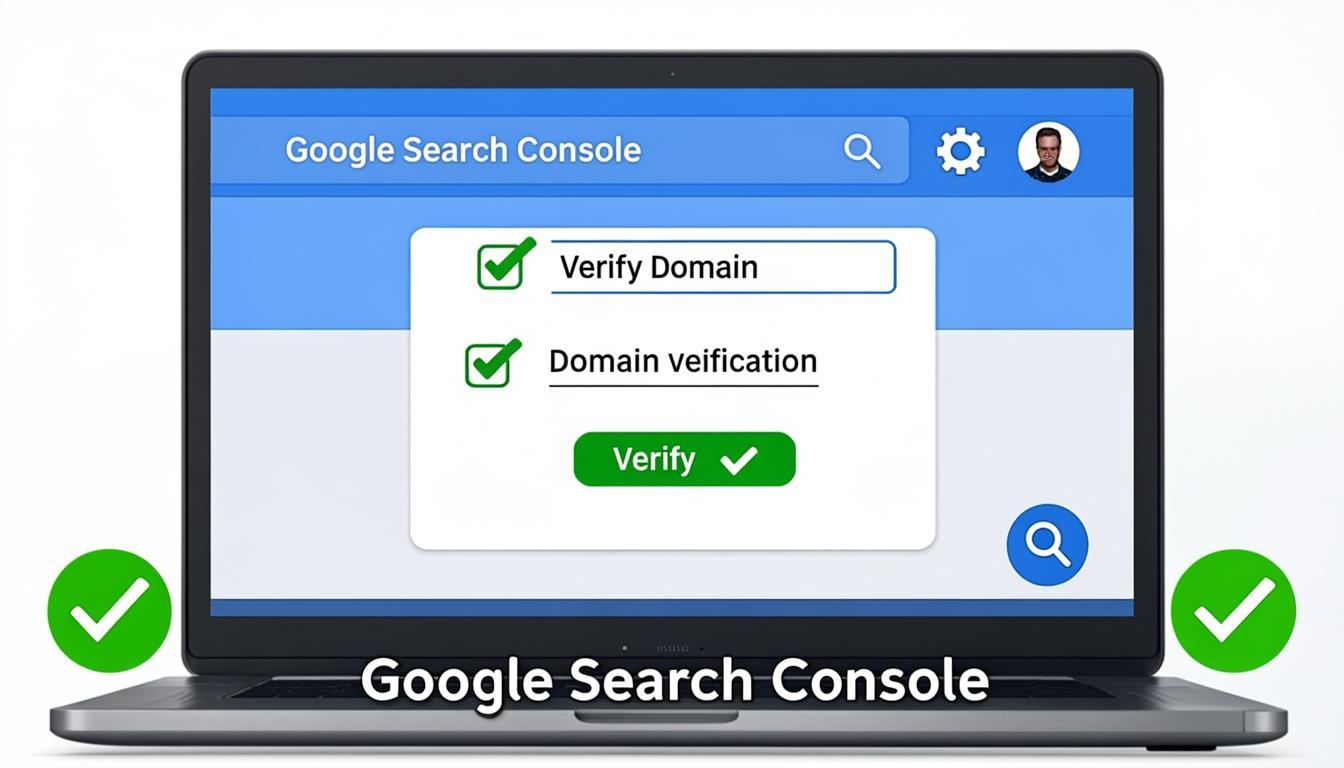
To add a domain property, go to Search Console, click "Add Property," and select "Domain." Enter your domain name (for example, digitalwasim.com) and verify ownership. The easiest verification method is adding a TXT record to your domain's DNS settings. If your domain is registered with a supported registrar like Namecheap, GoDaddy, or Google Domains, verification takes about two clicks.
Submitting Your Sitemap
After verifying your property, submit your XML sitemap. This tells Google about all the pages on your site and speeds up the initial crawling process. Your sitemap URL is typically at yourdomain.com/sitemap.xml.
Go to Sitemaps in the left sidebar, enter your sitemap URL, and click Submit. Google will start processing it within minutes and will begin crawling the URLs listed.
starting a profitable niche websiteThe Performance Report: Your Most Important Dashboard
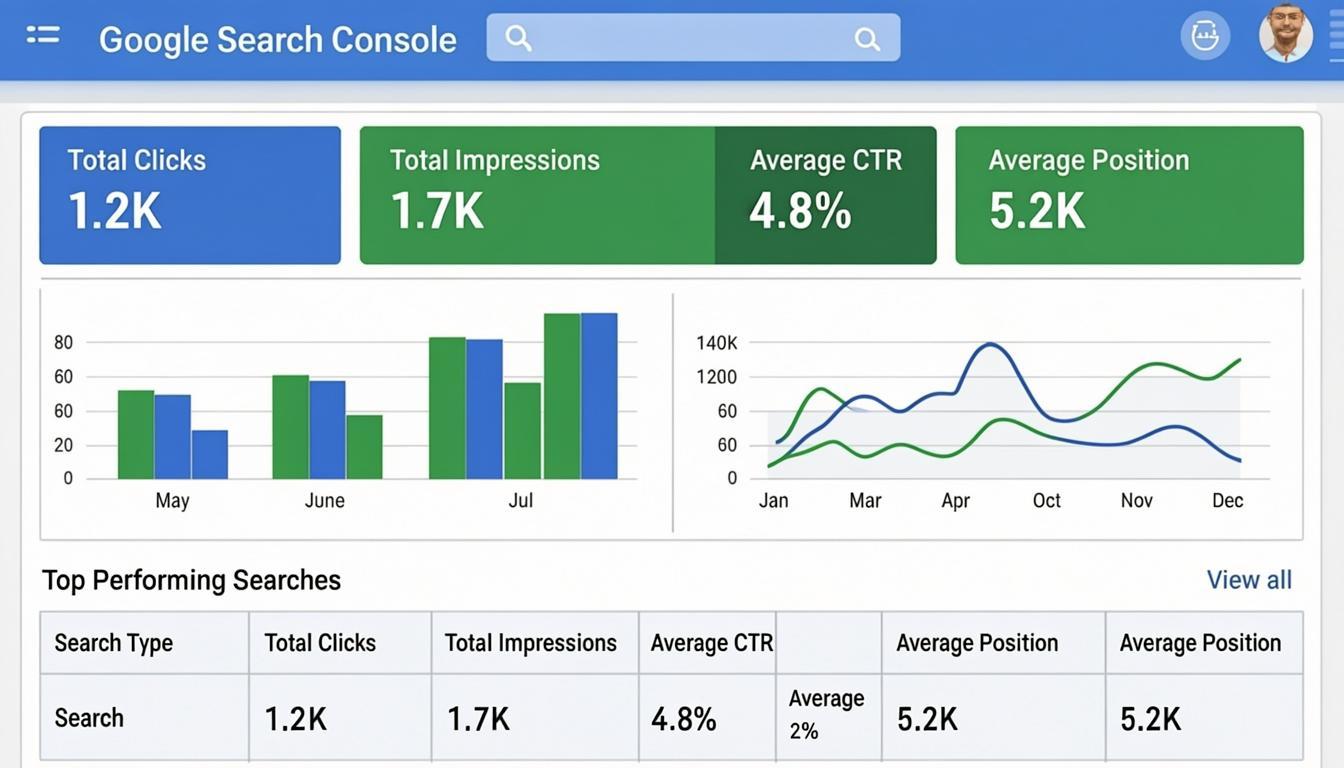
The Performance report is where most bloggers spend their time in Search Console, and for good reason. It shows you which keywords your site appears for, how many clicks and impressions each keyword generates, your average ranking position, and how these metrics change over time.

Key Metrics Explained
Clicks: Impressions: CTR (Click-Through Rate): Average Position:How I Analyze Performance Data
Every week, I follow this analysis routine:
Step 1: Step 2: Step 3: Step 4: Step 5:This 10-minute weekly routine gives me actionable insights that directly influence my content and optimization decisions.
URL Inspection Tool: Deep Dive Into Individual Pages
The URL Inspection tool is one of the most useful but underused features in Search Console. Paste any URL from your site into it and you get a detailed report about that specific page.
What It Shows You
Indexing status: Crawled URL: Last crawl: Page rendering: Enhancements:Practical Uses
I use the URL Inspection tool most often after publishing new content. After hitting publish, I paste the new URL into the inspection tool and click "Request Indexing." This tells Google to prioritize crawling the page, which can get it indexed within hours instead of waiting for Google to discover it naturally.
I also use it when pages are not ranking as expected. If a page should rank for a keyword but does not appear in results, the URL Inspection tool often reveals the issue. Maybe it is not indexed. Maybe it is being flagged for a mobile usability problem. Maybe Google is seeing a different version of the page than intended.
The Coverage Report: Finding Hidden Indexing Problems
The Coverage report shows you which pages on your site are indexed, which have errors, which have warnings, and which are excluded from indexing. This is where you find hidden problems that silently hurt your traffic.

Common Issues I Find
Not indexed (submitted URL not found): Crawled - not indexed: Discovered - not yet indexed: Duplicate without user-selected canonical: finding and fixing duplicate content problemsAdvanced Features Most Bloggers Ignore
Page Experience Report
This report shows you how your site performs on Core Web Vitals metrics, which are ranking factors that measure loading speed, interactivity, and visual stability. Each URL is categorized as good, needs improvement, or poor.
Focus on the URLs categorized as "poor" first. These are actively hurting your rankings. Common fixes include optimizing images, deferring non-critical JavaScript, and properly sizing images to avoid layout shifts.
Links Report
The Links report shows you which websites link to your site (external links) and which pages on your own site link to each other (internal links). This is valuable for both backlink monitoring and internal linking optimization.
I use this report to find internal linking opportunities. If I see that an important page has very few internal links pointing to it, I add links from other relevant pages to boost its visibility.
backlinks still matter for SEO in 2026Removals Tool
If you have pages you want removed from Google's index (deleted pages, outdated content, pages with sensitive information), the Removals tool lets you temporarily hide them from search results. Note that this is temporary. For permanent removal, you need to return a 404 status code and verify it in Search Console.
Sitemaps Report
This report shows you the status of your submitted sitemaps, including how many URLs were discovered and how many were indexed. If you see a large gap between discovered URLs and indexed URLs, it indicates that many of your pages are not being indexed. This usually points to quality or technical issues that need attention.
Using Search Console Data to Plan Content
The most powerful way to use Search Console is to let it drive your content decisions. Here is my process.
Find Keyword Gaps
Search the Performance report for your target keywords. If you see keywords where your site gets impressions but ranks below position 10, create or update content specifically targeting those keywords. You already have some visibility, which means you have a foot in the door. Better content can push you onto page one.
Identify Content Opportunities
Look at the queries report for unexpected keywords. Sometimes your site appears for searches you did not intentionally target. If you see a keyword related to your niche getting impressions, write a dedicated article about it.
Monitor Content Performance Over Time
Set up regular reports to track how your content performs over 3-month, 6-month, and 12-month periods. Content that steadily gains impressions and clicks is worth updating and expanding. Content that is declining might need a refresh or might be facing new competition.
Search Console vs. Google Analytics
A common question is which tool to use and when. Here is how they complement each other.
Search Console Google Analytics 4Use Search Console to decide what content to create and optimize. Use Analytics to understand what visitors do with that content once they find it. Together, they give you a complete picture of your site's performance.
Common Search Console Mistakes to Avoid
Checking too infrequently: Ignoring low-impression keywords: Not requesting indexing for new content: Over-reacting to small data changes:Final Thoughts
Google Search Console is the single most valuable tool for anyone who wants to grow their blog through search traffic. It provides data that no third-party tool can match because it comes directly from Google. The insights it offers are not estimates or approximations. They are factual data about how Google's systems interact with your website.
Invest time in learning every feature I have covered here. Set up a weekly analysis routine. Use the data to drive your content and optimization decisions. The bloggers who understand and act on Search Console data are the ones who consistently rank higher and grow faster.